Five Ways to Install the Windows 11 2026 Update
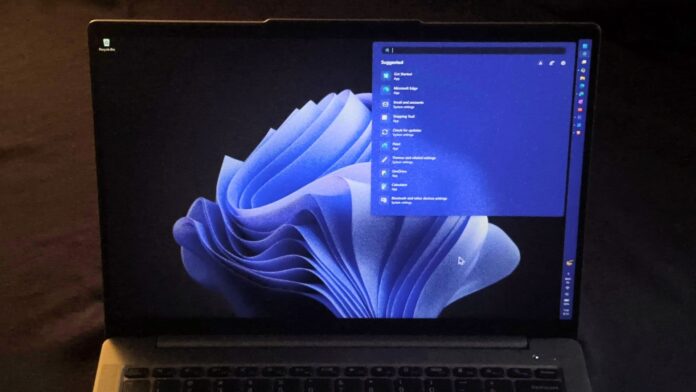
MS has begun rolling out Windows 11 version 26H2, also known as the Windows 11 2026 Update. It can be installed through Windows Update, the Windows 11 Installation Assistant, an ISO file, the Media Creation Tool, or Rufus.
For most home users, Windows Update is the simplest option when 26H2 is already available on the device. The Installation Assistant and ISO provide alternative upgrade paths, while the Media Creation Tool and Rufus can create bootable USB media. Rufus can also modify the installation media to bypass certain hardware checks on unsupported PCs.
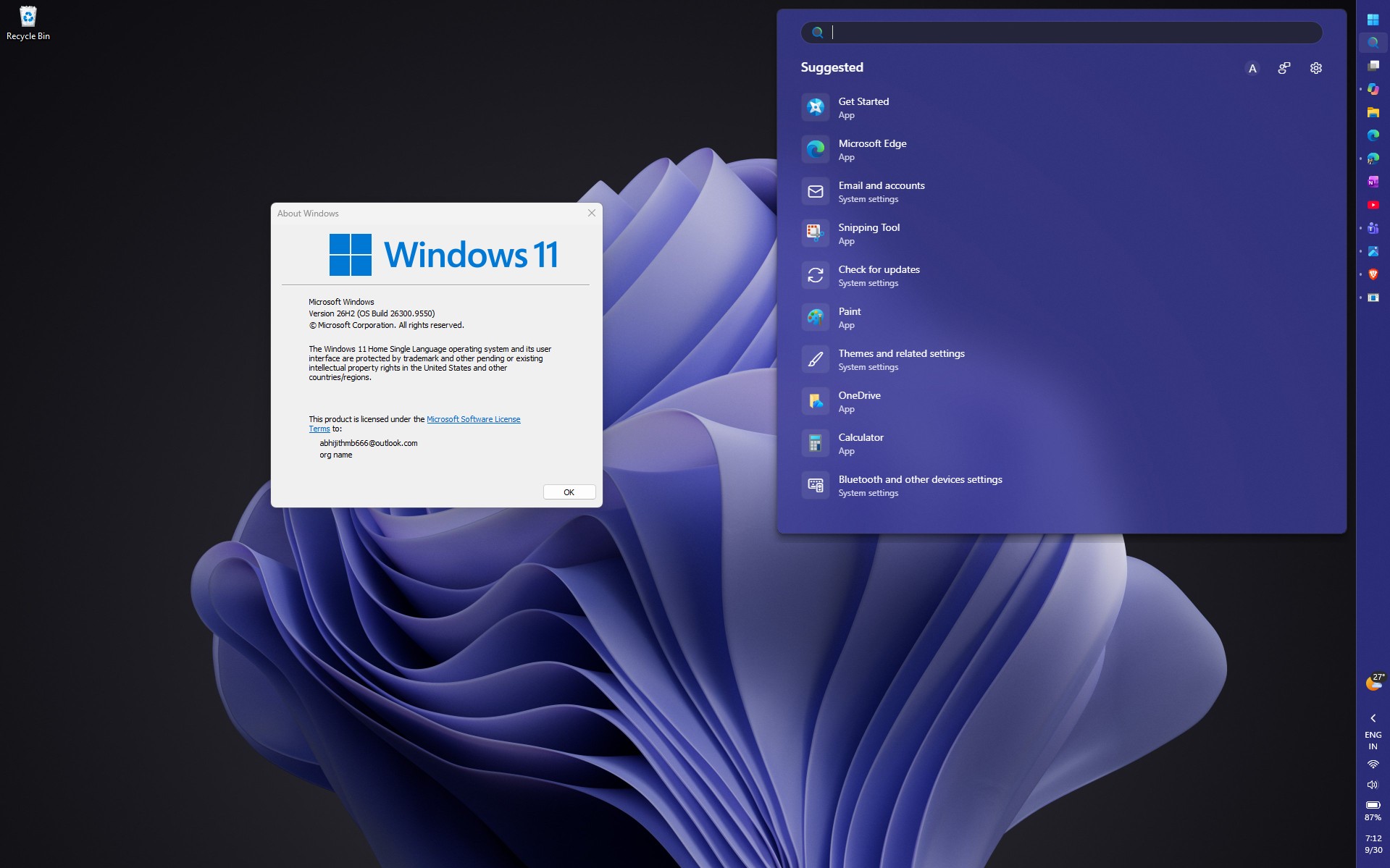
MS describes version 26H2 as being built on the same servicing foundation as recent Windows 11 releases. According to John Cable, Vice President of Product Management for Windows Servicing and Delivery, the release introduces the latest Windows improvements through a streamlined update process intended to minimize disruption.
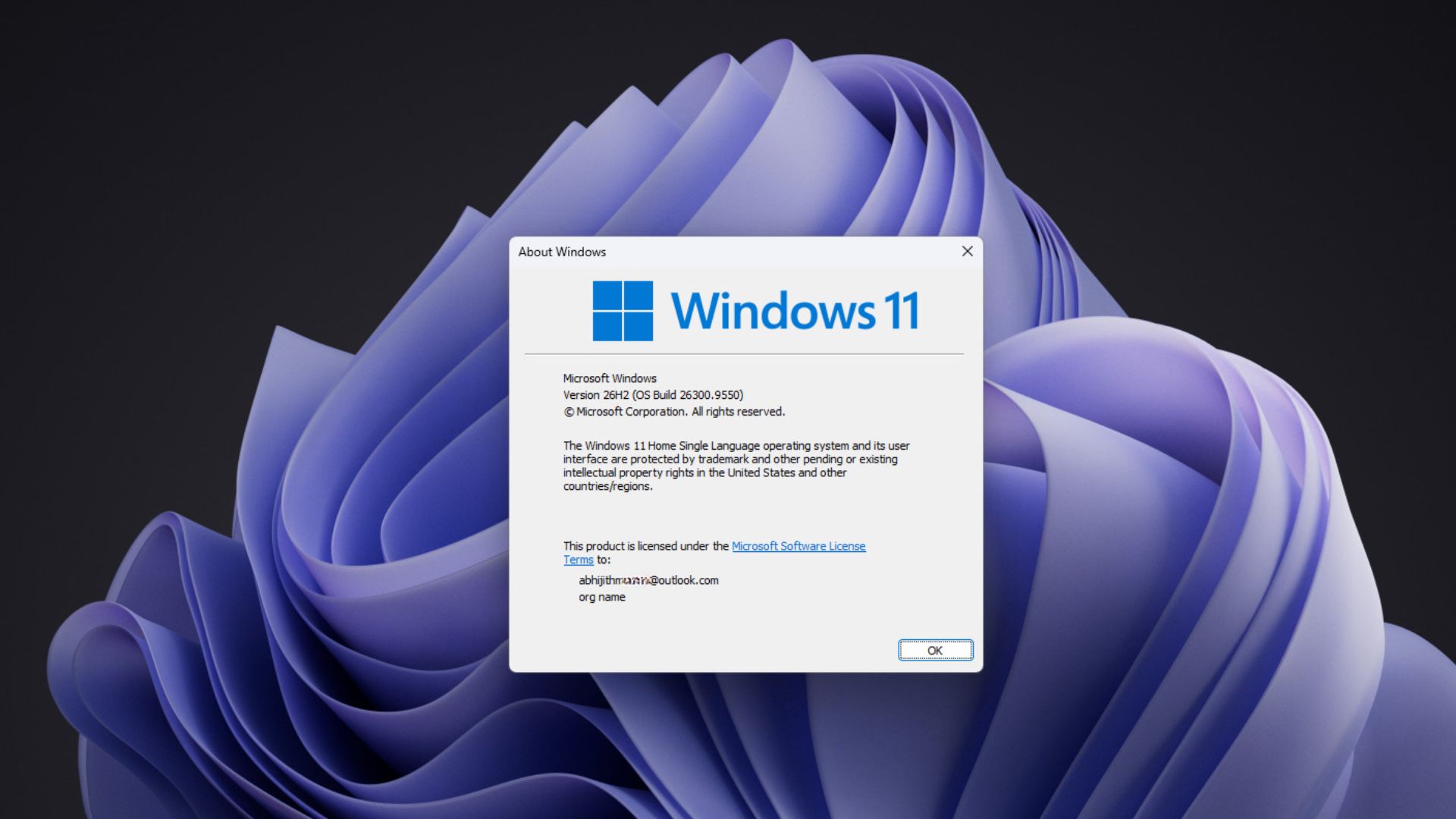
A completed installation of Windows 11 26H2 may initially report Build 26300.9550, although later cumulative updates will increase the build number. Each installation method serves a different purpose, so the appropriate choice depends on whether you need an upgrade, a clean installation, or reusable installation media.
What to Check Before Installing Windows 11 26H2
An in-place upgrade preserves applications, personal files, and most settings. A clean installation removes the existing Windows installation and starts over. Installation media can also be used to install Windows on another computer or retained as a bootable USB or ISO for future use.
Running Windows Setup from within an existing Windows installation generally performs an in-place upgrade. Booting directly from a USB installer is normally used for a clean installation.
Back up important files before continuing. A clean installation can erase everything on the selected drive, and MS recommends creating a backup before installing or reinstalling Windows.
If compatibility is uncertain, use MS’s PC Health Check application to determine whether the computer meets the Windows 11 requirements.
Method 1: Install Windows 11 26H2 Through Windows Update
Windows Update is MS’s preferred installation method. It is also the fastest option for eligible PCs already running Windows 11 24H2 or 25H2. MS says the process resembles a monthly update, requiring only a small download and a quick restart to move to version 26H2.
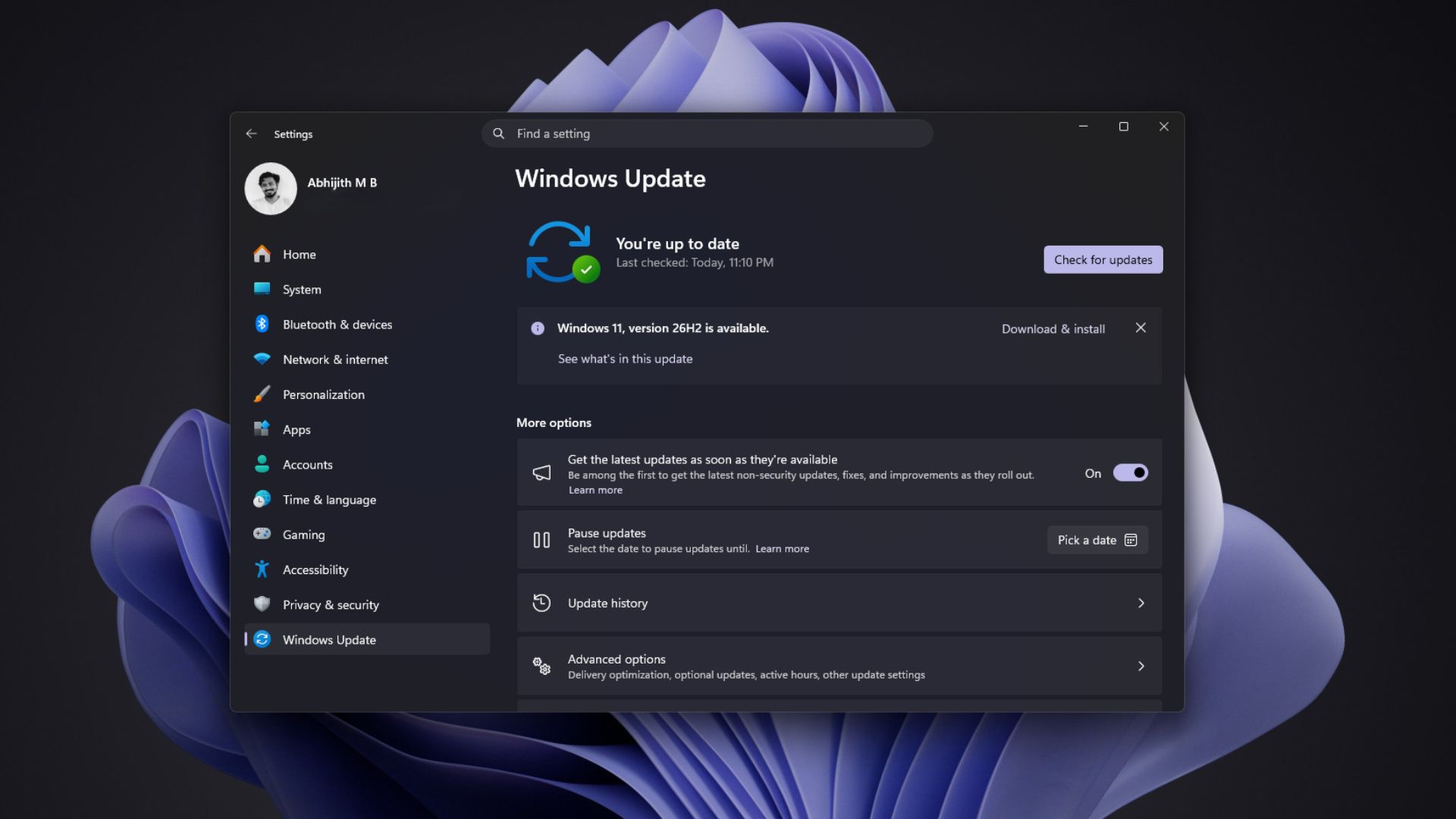
The download is small because versions 24H2, 25H2, and 26H2 share the same servicing branch. The 26H2 enablement package is approximately 174KB because it primarily activates code that is already present on the computer.
After installation, press Windows + R, enter winver, and press Enter. Alternatively, open Settings > System > About. The system should identify itself as Windows 11, version 26H2.
An initial installation may show Build 26300.9550. MS will continue servicing 26H2 through cumulative updates, beginning with the October 13, 2026 security update, so installations completed later may display a higher build number.
If 26H2 does not appear immediately, Windows Update is not necessarily malfunctioning. MS distributes feature updates in phases and expands availability over time. A safeguard hold may also prevent installation on PCs with known compatibility issues, such as an incompatible application or driver, until a solution becomes available.
Users who do not want to wait for Windows Update can consider the Installation Assistant or an ISO.
Method 2: Install Windows 11 26H2 With the Installation Assistant
If Windows Update does not offer 26H2, MS’s Windows 11 Installation Assistant can upgrade the computer currently in use. MS presents this tool as the preferred alternative for installing Windows 11 directly on the current device.
Before proceeding, install and run MS’s PC Health Check application to confirm Windows 11 eligibility.
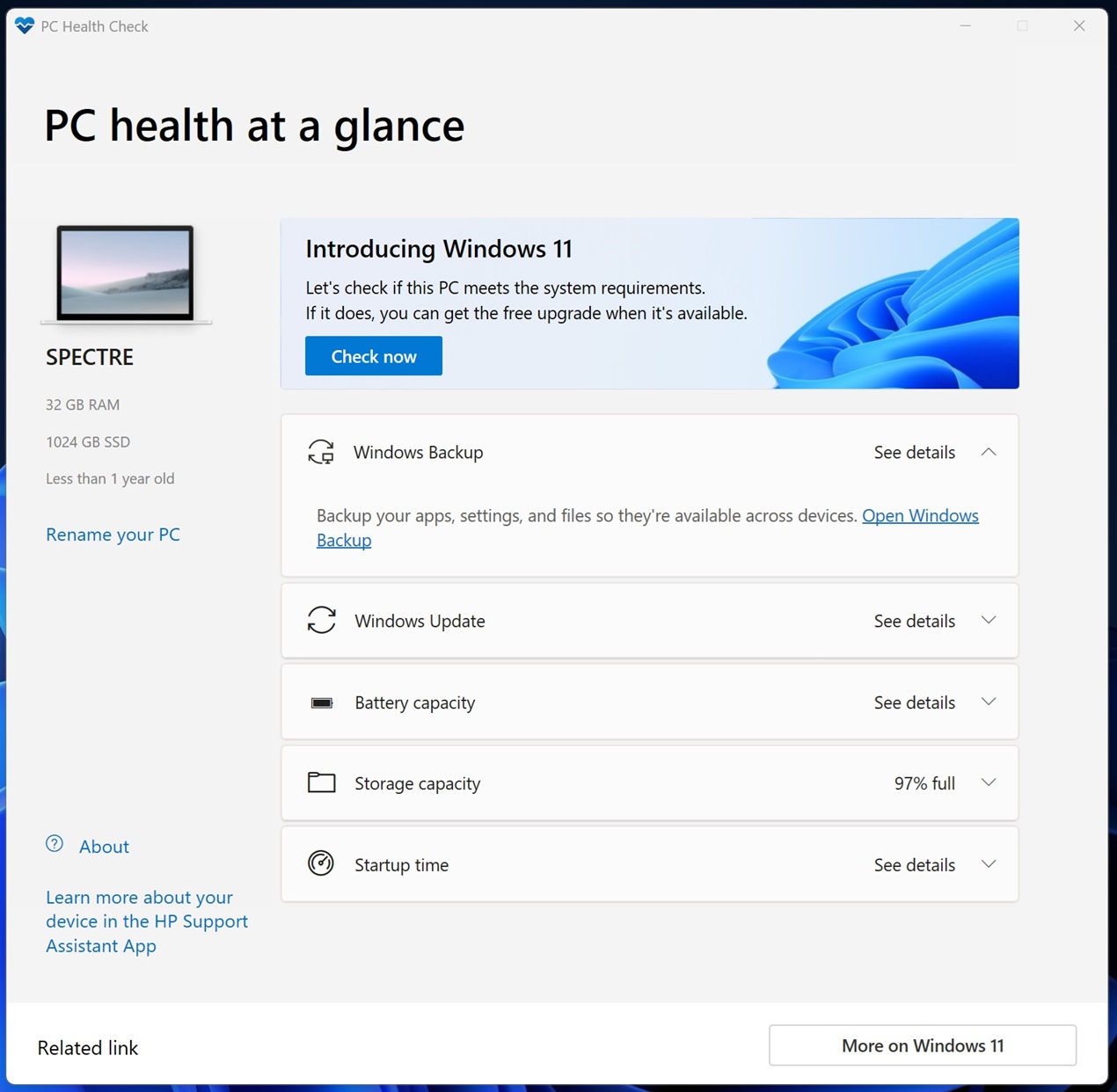
Select Check now to perform the system requirements test, which generally completes in less than 20 seconds.
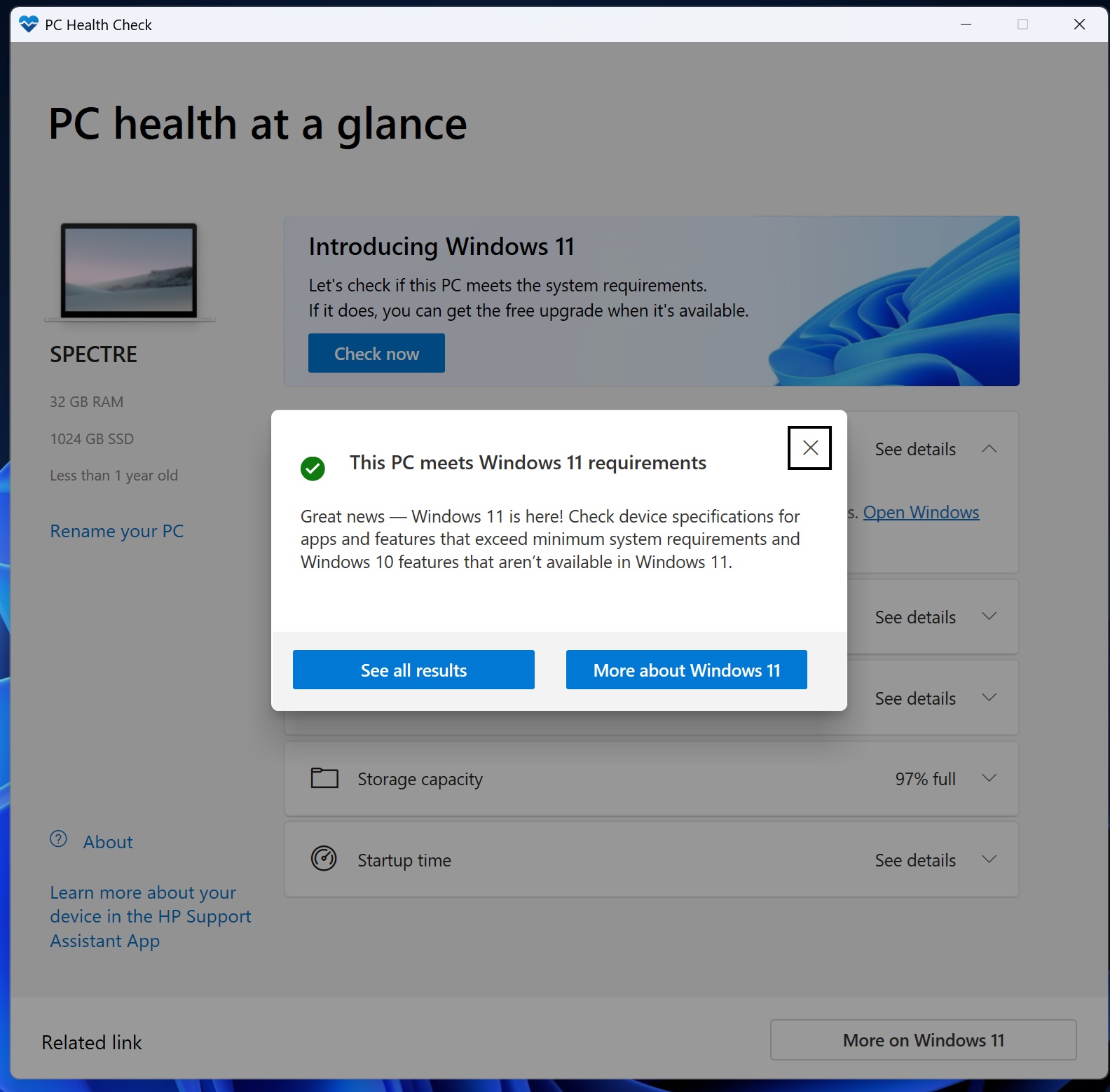
If the application reports, “This PC meets Windows 11 requirements”, download and run the Windows 11 Installation Assistant.
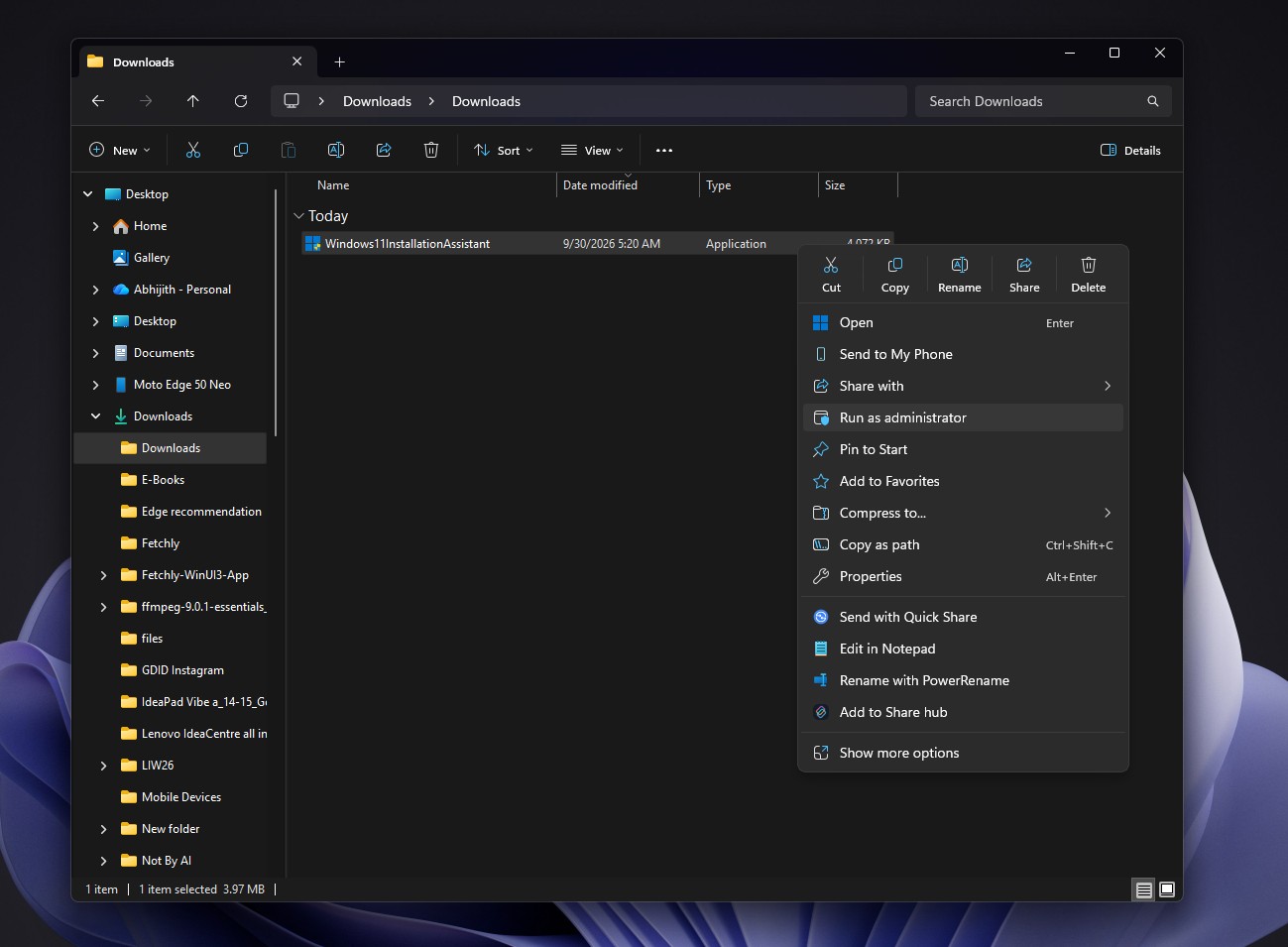
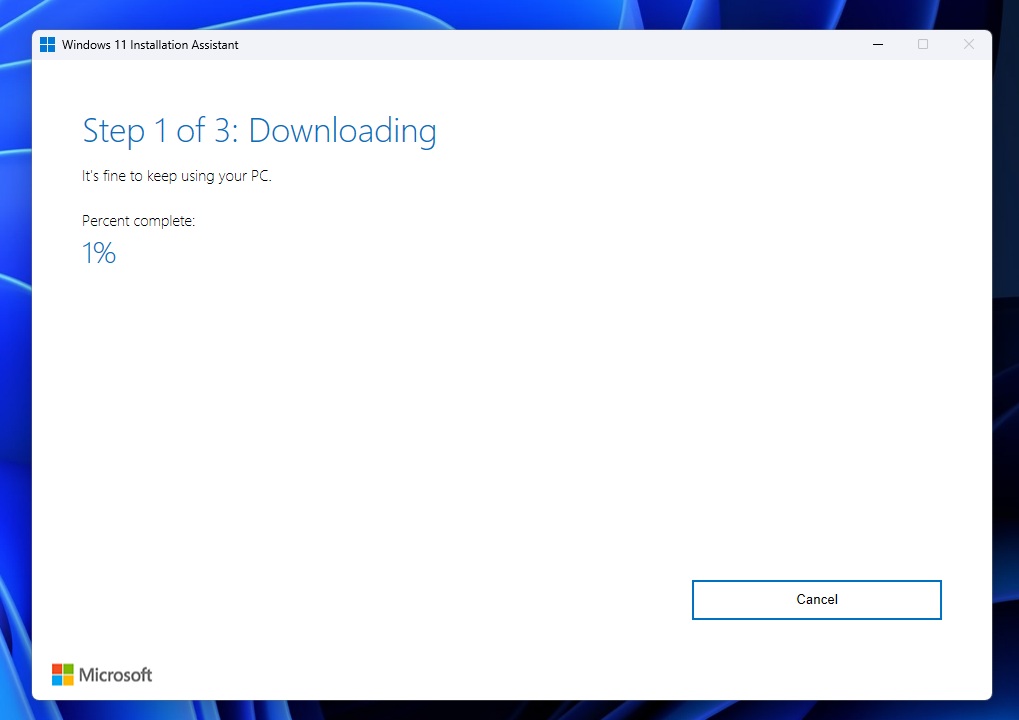
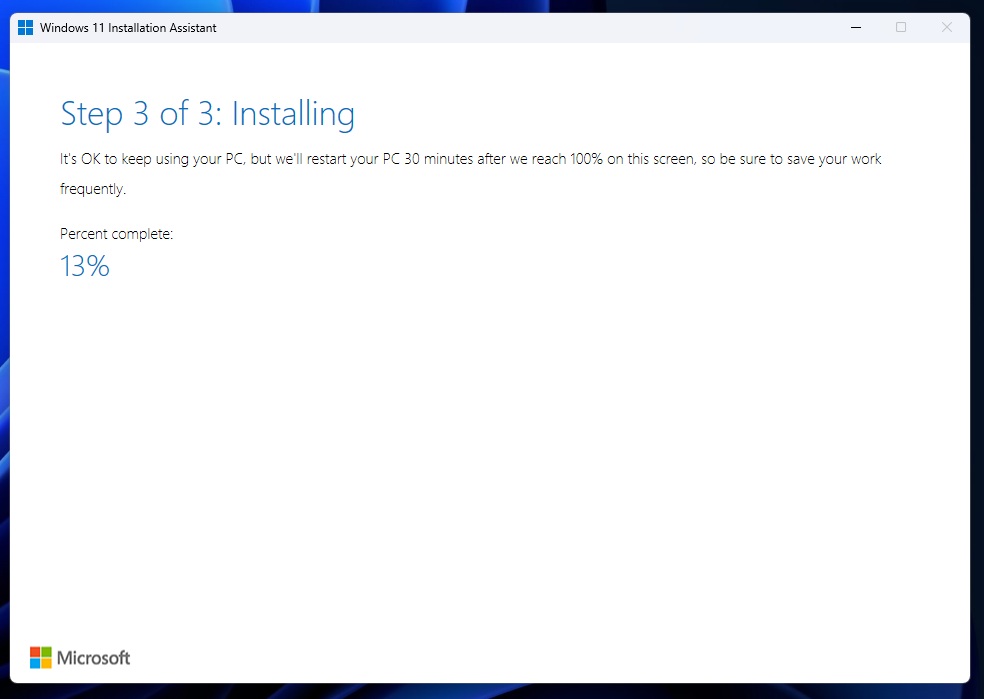
The computer may restart several times during installation. Do not turn it off while the upgrade is in progress. Unlike the small Windows Update enablement package, the Installation Assistant downloads a full Windows installation and therefore takes longer and requires approximately 9GB of available storage.
The Installation Assistant upgrades the current PC but does not create installation media.
MS generally recommends waiting until Windows Update offers the upgrade. Although the Installation Assistant can install 26H2 sooner, forcing the update may expose the device to a compatibility problem that caused MS to withhold the regular Windows Update release.
Method 3: Install Windows 11 26H2 From an ISO
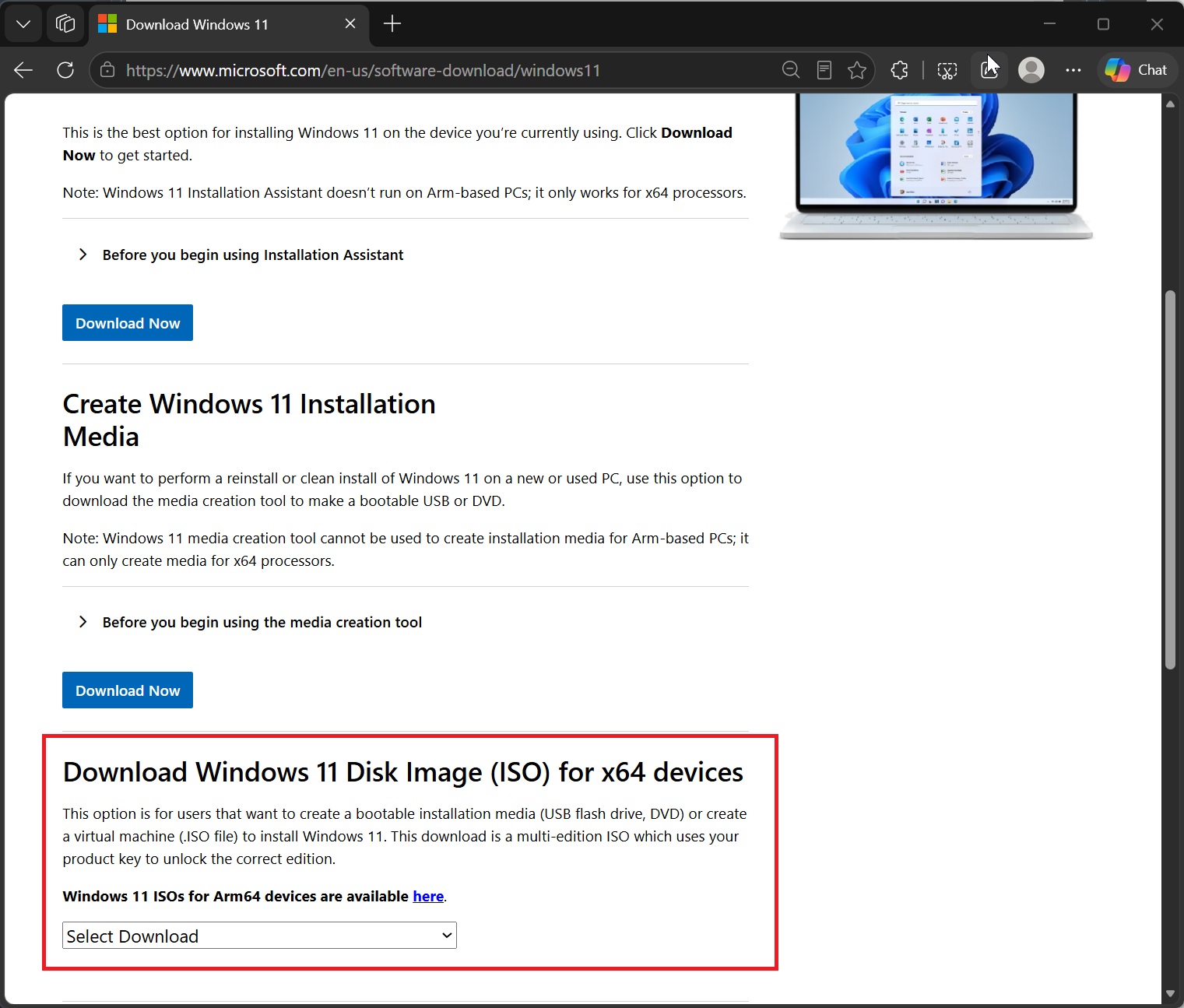
An ISO is the most flexible official option for users who want greater control than Windows Update or the Installation Assistant provides. It can be used for an in-place upgrade that preserves data or for a clean installation.
MS prepared 26H2 installation media while the release was in the Release Preview Channel. The ISO is available directly from MS in supported languages, with SHA-256 verification available for confirming file integrity.
When Setup is launched from a mounted ISO, it provides three options:
- Keep personal files and apps
- Keep personal files only
- Keep nothing
For a standard upgrade, select Keep personal files and apps.
A mounted ISO can also help when Windows Update repeatedly fails. Setup reinstalls Windows system files while preserving applications and data when the appropriate retention option is selected.
To erase the current Windows installation and start over on the same PC, mount the ISO and choose Keep nothing. This removes personal data, settings, and applications.
A bootable USB is required when you need to delete or recreate partitions, format drives, or install Windows on a completely blank disk. MS classifies a clean installation as an advanced option because it removes personal files, applications, manufacturer customizations, and changes made through Settings.
Method 4: Create Windows 11 26H2 Media With the Media Creation Tool
The Media Creation Tool is MS’s official utility for downloading Windows and creating a bootable Windows 11 USB drive.
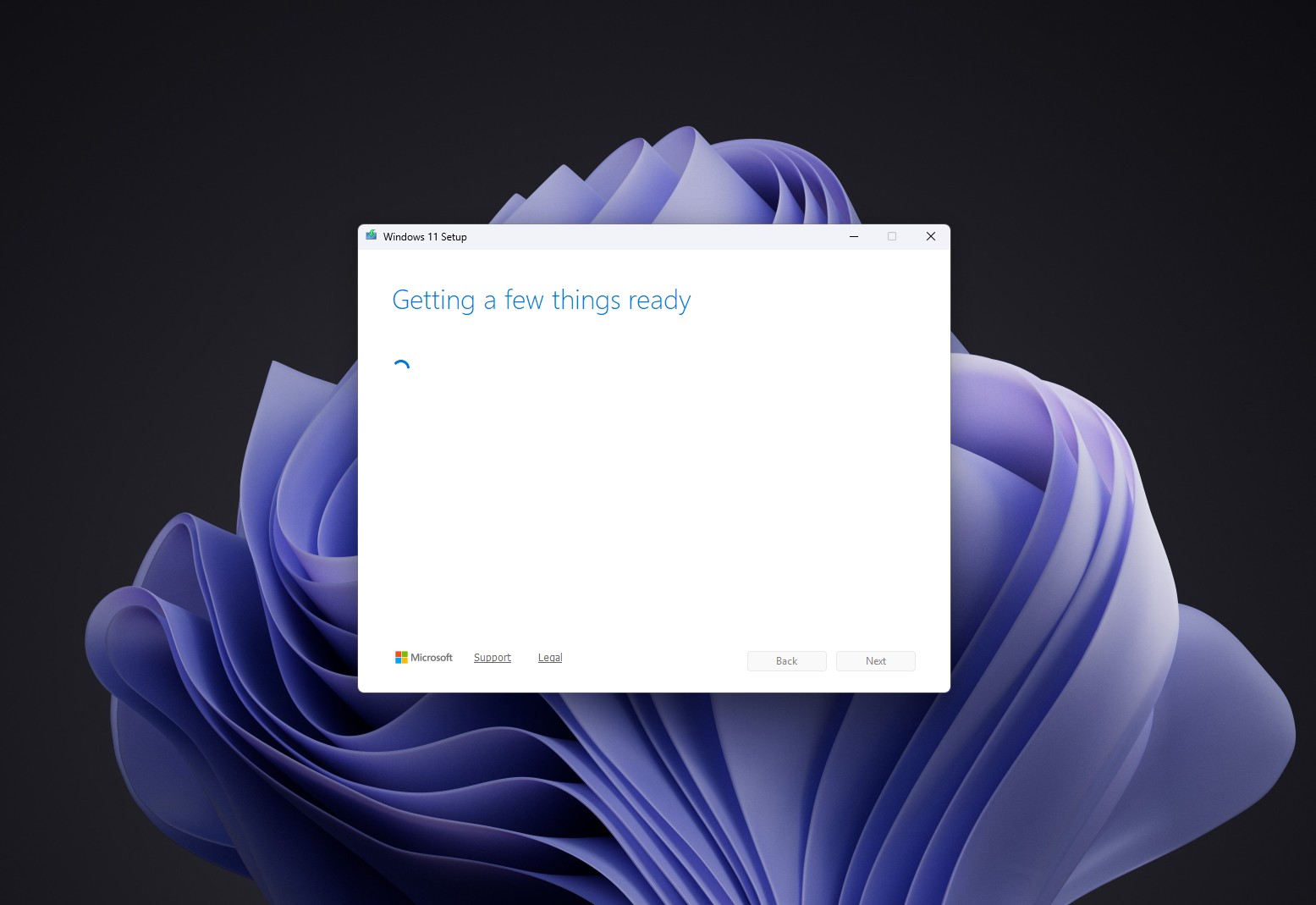
The tool allows you to create a USB flash drive or save an ISO file.
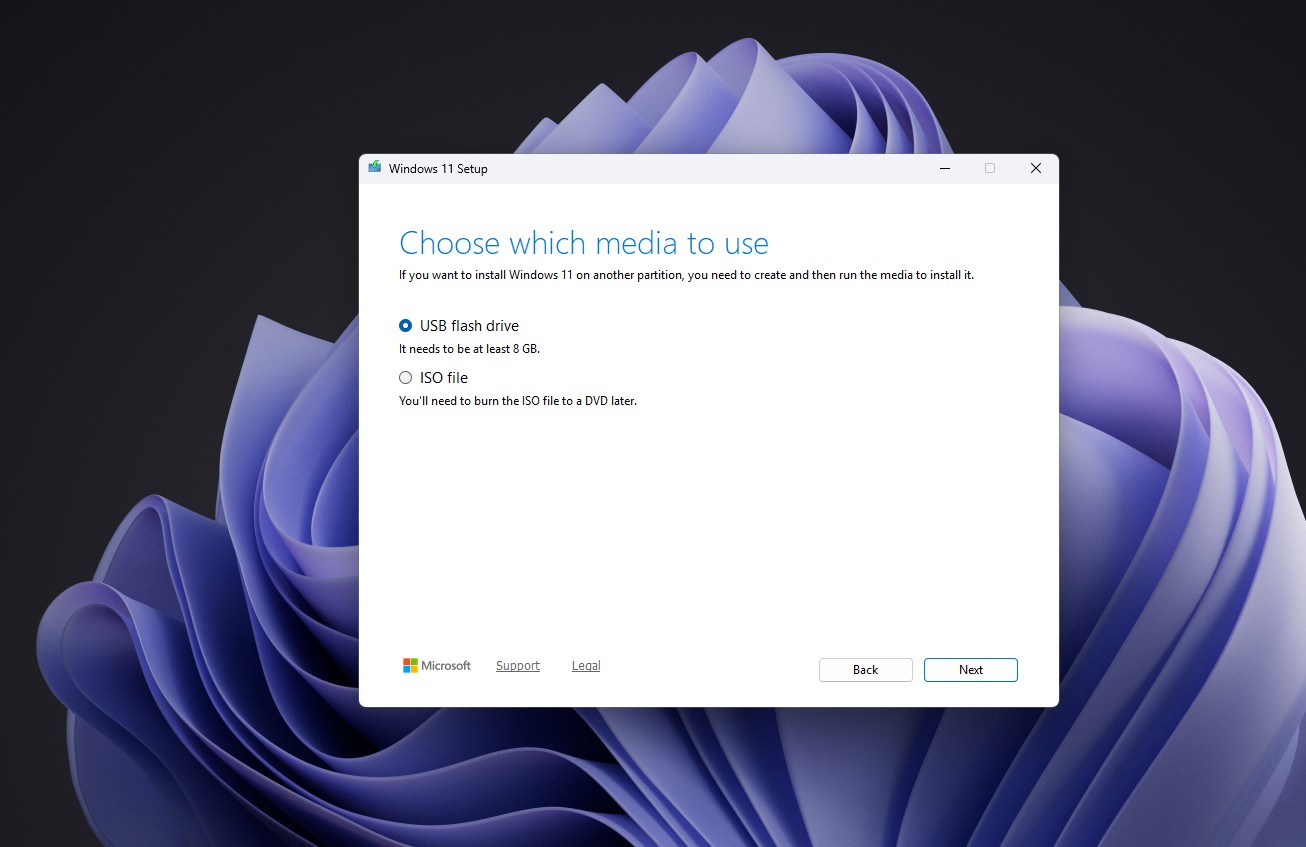
A blank USB flash drive with at least 8GB of storage is required. The selected drive will be formatted completely, so copy any important files elsewhere before proceeding. If ISO file is selected instead, the tool saves an image that can be used with a virtual machine or written to a DVD.
The Media Creation Tool creates installation media only for x64 processors. It cannot create media for Arm-based PCs, which require MS’s separate Arm64 ISO.
This method is particularly useful when preparing installation media for another computer, repairing a PC that cannot boot, or creating an official bootable USB without third-party software.
Method 5: Create Windows 11 26H2 Media With Rufus
Rufus is a free, open-source utility that converts a Windows ISO into bootable installation media. It is not a Windows installer itself, but it provides customization options unavailable in MS’s tools.
Everything on the selected USB drive will be erased, so back up its contents first. If an ISO is not already available, Rufus can download one from MS through its download function.
Bypassing Windows 11 Hardware Requirements
Rufus provides Windows User Experience options that can modify Windows Setup. Available choices may include:
- Removing the requirements for at least 4GB of RAM, Secure Boot, and TPM 2.0
- Removing the online MS account requirement
- Creating a local account with a selected username
- Disabling data collection options
- Preventing automatic BitLocker device encryption
Testing with Windows 11 25H2 on a Windows 10 PC equipped with 2GB of RAM and no TPM showed that the TPM, Secure Boot, and memory bypasses worked. Because 26H2 shares its servicing branch with 25H2, these options are expected to behave similarly. However, MS regularly changes Windows Setup and the out-of-box experience, so individual bypasses may not continue working with every 26H2 build.

Rufus cannot bypass every technical limitation. Windows 11 24H2 and later require a processor that supports the POPCNT instruction. Very old processors may therefore be unable to boot the installer regardless of the selected options.
Using Rufus on Supported PCs
Rufus is not limited to unsupported hardware. It can also be used on fully compatible computers to:
- Create a bootable USB from an existing ISO
- Perform a clean installation
- Install Windows on another computer
- Avoid certain local-account and BitLocker setup prompts
- Reuse an existing ISO without downloading Windows again
Can Windows 11 26H2 Be Installed on Unsupported Hardware?
It may be possible on some PCs, but MS does not recommend it.
MS warns that installing Windows 11 on a computer that does not meet the minimum requirements may cause compatibility problems. Unsupported devices are not guaranteed to receive updates, including security updates. MS also continues to describe TPM 2.0 as a non-negotiable requirement for official upgrades from Windows 10.
Rufus has successfully bypassed TPM 2.0, Secure Boot, and RAM checks for Windows 11 25H2, and similar behavior is expected with 26H2. Nevertheless, users should expect potential compatibility issues, a lack of guaranteed updates, and the possibility that future Setup changes will disable existing bypasses.
Before treating a PC as unsupported, confirm its eligibility. MS has clarified that Windows 11 24H2 still supports qualifying 8th-, 9th-, and 10th-generation Intel processors after an earlier support document caused confusion. Those eligible processors also qualify for 26H2 through the shared servicing branch.
Can Windows 11 26H2 Be Installed Without a MS Account?
The answer depends on the Windows build and installation media, and the available methods continue to change.
Some older builds allow users to bypass MS account sign-in. In October 2025, MS began removing known local-account creation mechanisms from Windows 11 Setup, including oobe\bypassnro. MS said these methods skipped critical setup screens and could leave devices incompletely configured. More recent out-of-box experience changes have not removed the official account requirement.
Testing conducted in September 2026 found that selecting the small Learn more link on the MS account sign-in page of the latest tested Windows 11 Home media opened a local-account screen.
A method that works with one ISO may disappear from the next. Rufus provides another possible route through its local-account customization options.
Windows 11 26H2 Upgrade Versus Clean Installation
An upgrade preserves personal files, can retain installed applications, and keeps most settings. It can be initiated through Windows Update, the Installation Assistant, or a mounted ISO.
A clean installation starts Windows from scratch and removes applications and personal files. It can be useful when replacing a problematic installation, but it requires careful attention to backups, drives, and partitions.
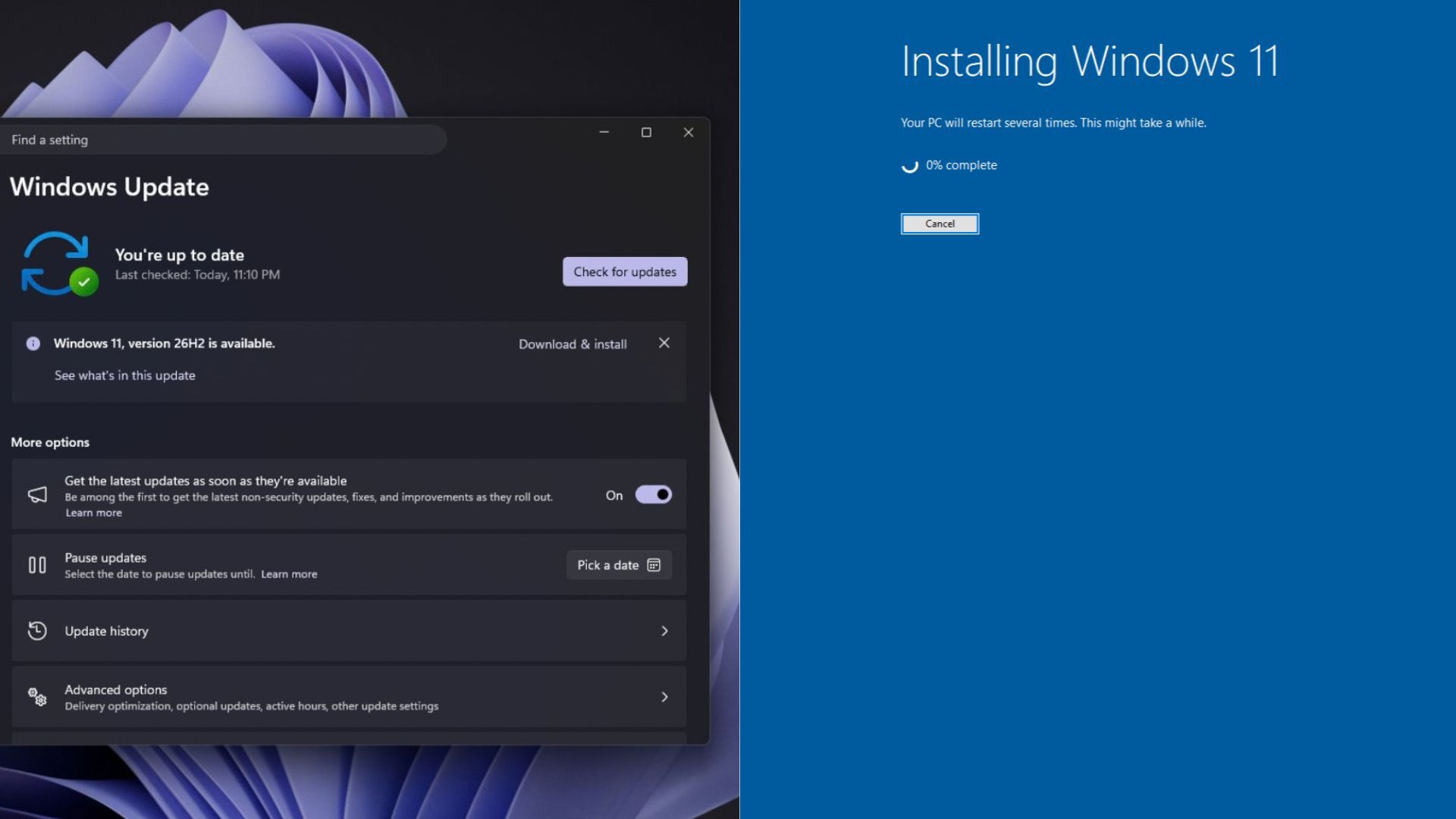
If the PC is working correctly and the only goal is to move to 26H2, an upgrade is the least disruptive choice. On a system running 24H2 or 25H2, the enablement process may take only a few minutes. A clean installation is more appropriate when deliberately starting over or troubleshooting a damaged Windows installation.
What to Expect After Installing Windows 11 26H2
Following a clean installation, Windows 11 launches the out-of-box experience. This process includes selecting a region and keyboard layout, connecting to a network, signing in with a MS account, choosing privacy settings, and deciding whether to restore data from Windows Backup. An in-place upgrade skips most of these steps.
After reaching the desktop, run Windows Update again to obtain the latest cumulative updates and drivers. Also check Settings > System > Activation. A computer previously activated with a digital license will usually reactivate automatically after connecting to the internet.
To verify the installed version, press Windows + R, enter winver, or open Settings > System > About. Confirm that Windows 11 version 26H2 and the expected build number are displayed.
Windows 11 26H2 Mostly Activates Features Already Delivered
The Windows 11 2026 Update is unusual because versions 24H2, 25H2, and 26H2 share the same servicing branch. MS says many of its features were already delivered through monthly servicing updates. Version 26H2 activates selected features and resets the support lifecycle.
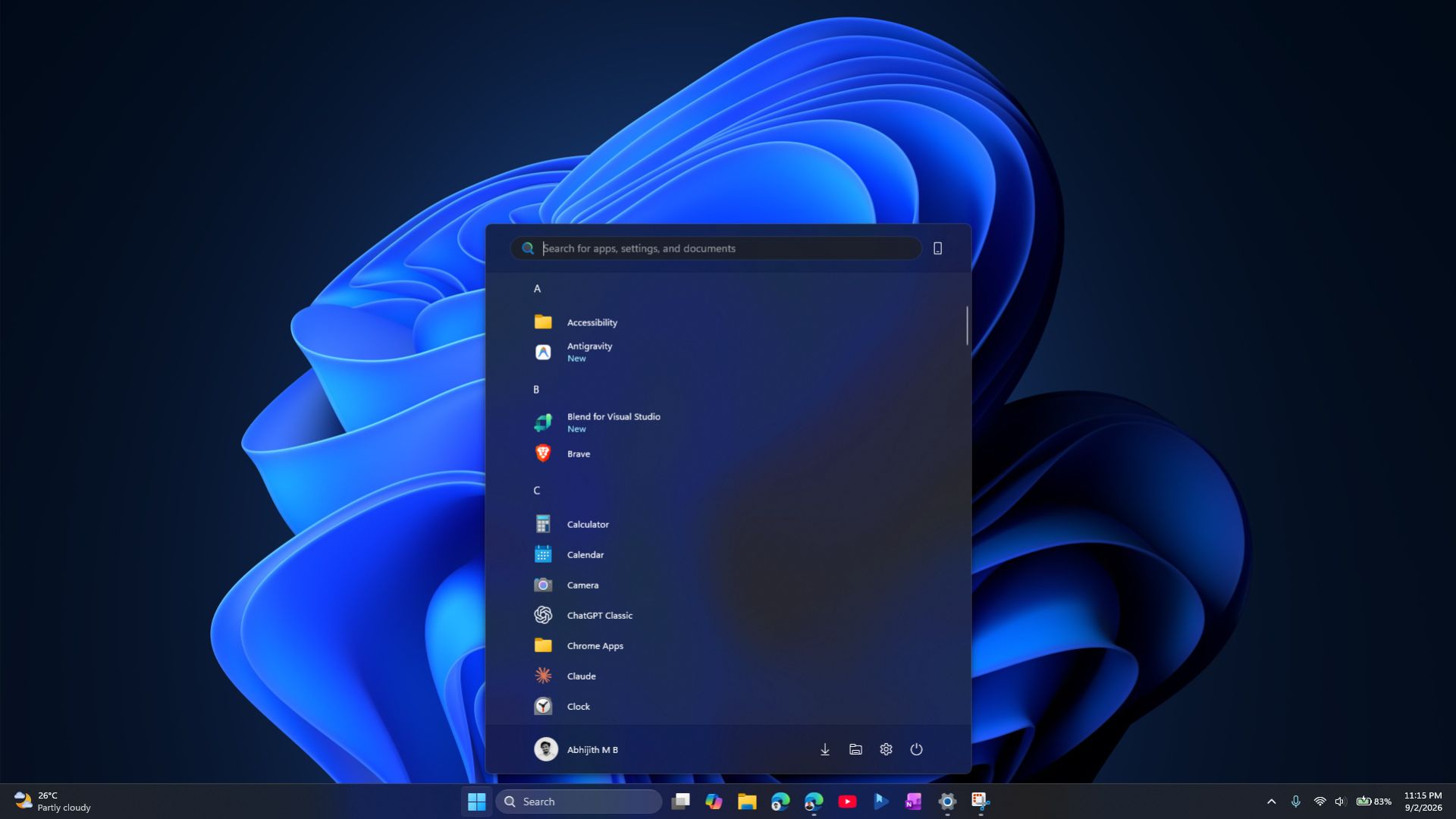
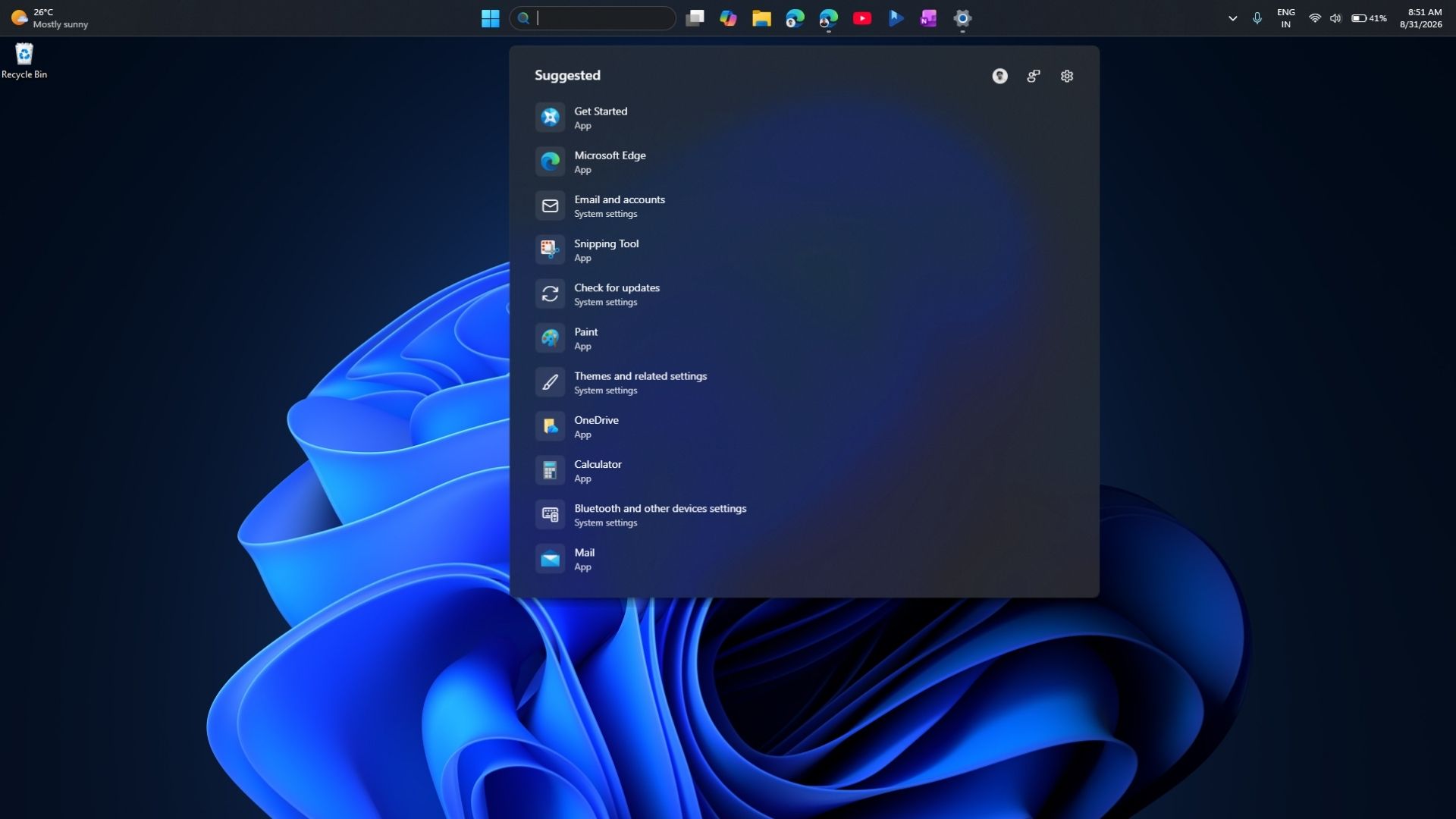
Testing showed that upgrading to 26H2 did not immediately activate the largest new features because MS continues to manage them through Controlled Feature Rollout. None of the headline additions are exclusive to 26H2. However, moving to 26H2 may increase the likelihood of receiving features distributed through the August and September Windows 11 updates.
The most significant change is the support lifecycle. MS provides 36 months of servicing for Enterprise and Education editions beginning September 29, 2026. Home and Pro editions receive the standard 24 months of servicing.
Windows 11 26H2 Installation FAQ
How can Windows 11 26H2 be installed?
Use Windows Update, the Installation Assistant, an ISO, the Media Creation Tool, or Rufus. The best option depends on whether you need an upgrade, a clean installation, or bootable media.
Can Windows 11 26H2 be installed without Windows Update?
Yes. The Installation Assistant, ISO, Media Creation Tool, and Rufus provide alternatives to Windows Update.
Can a Windows 11 24H2 PC be upgraded to 26H2?
Yes, if the computer is eligible. MS designed 26H2 as an enablement package for supported Windows 11 24H2 and 25H2 systems.
Can an ISO install Windows 11 26H2 without deleting files?
Yes. Mount the ISO, run setup.exe, and select Keep personal files and apps during Setup.
Can Windows 11 26H2 be clean-installed?
Yes. Boot from installation media created with the Media Creation Tool or Rufus and follow the clean-installation process.
Can Windows 11 26H2 be installed on an unsupported PC?
Rufus can modify Windows Setup to bypass some requirements, but MS does not recommend installing Windows 11 on unsupported hardware.
Does Windows 11 26H2 require TPM 2.0?
Officially, yes. TPM 2.0 remains part of MS’s Windows 11 hardware requirements.
Can Windows 11 26H2 be installed without a MS account?
It depends on the build and installation media. MS continues to change the out-of-box experience and has blocked several older bypass methods.
What is the latest Windows 11 26H2 build?
An initial installation reported Build 26300.9550. Monthly cumulative updates will increase the build number over time.
Does Windows 11 26H2 support Arm PCs?
Yes. Arm-based computers can use Windows Update or the Arm64 ISO. The Installation Assistant and Media Creation Tool do not support Arm-based PCs.