Windows 11 KB5127648 Introduces Bluetooth Improvements, Emoji 17.0, and More
Windows 11 KB5127648 is now rolling out as the first cumulative update for Windows 11 26H2. Although it is smaller in scope than the previous update, it delivers significant Bluetooth improvements, adds Emoji 17.0 support, and introduces several usability enhancements.
MS is distributing the update through Windows Update and has also published offline .msu installers through the MS Update Catalog.
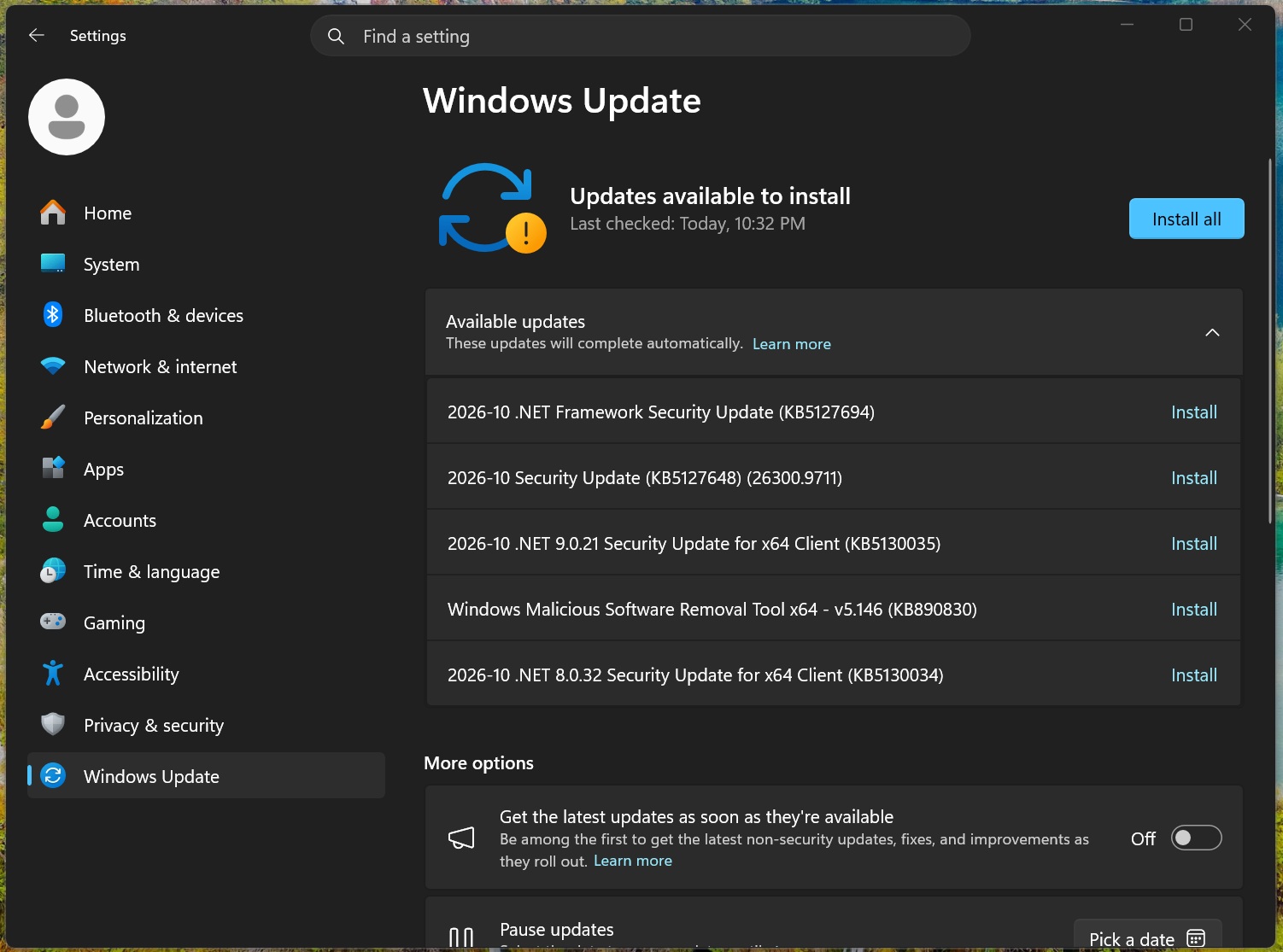
KB5127648 is the October 2026 Patch Tuesday security update. It downloads and installs automatically unless Windows Update has been paused. The update appears as “2026-10 Security Update (KB5127648) (26300.9711)” on Windows 11 26H2.
Updated OS Build Numbers
Windows 11 26H2: Build 26300.9711
Windows 11 25H2: Build 26200.9711
Windows 11 24H2: Build 26100.9711
This is the final update for Windows 11 24H2. Devices still running that version will need to upgrade to Windows 11 25H2 or 26H2 to continue receiving updates.
How to Download Windows 11 KB5127648
To install Windows 11 Build 26300.9711, open Settings > Windows Update, select Check for updates, and allow Windows to complete the installation.
Windows Update remains the recommended installation method. If it encounters errors, the standalone 64-bit and ARM64 .msu packages can be downloaded from the MS Update Catalog. Manual installation may take longer than usual because the update package is relatively large.
What Is New in Windows 11 Build 26300.9711 and Build 26200.9711?
The improvements in KB5127648 apply to Windows 11 versions 26H2, 25H2, and 24H2 through OS Builds 26300.9711, 26200.9711, and 26100.9711. MS is rolling out some features gradually, so they may not appear immediately on every device.
File Explorer Restores Preview Support for Downloaded Documents
File Explorer’s preview pane provides a convenient way to inspect documents, zoom in, and move between pages without opening files in a separate application.
A security change introduced in October 2025 prevented File Explorer from previewing many files downloaded from the internet, including PDFs obtained through services such as OneDrive or Google Drive. Instead, File Explorer displayed a warning that the file was unsafe to preview.
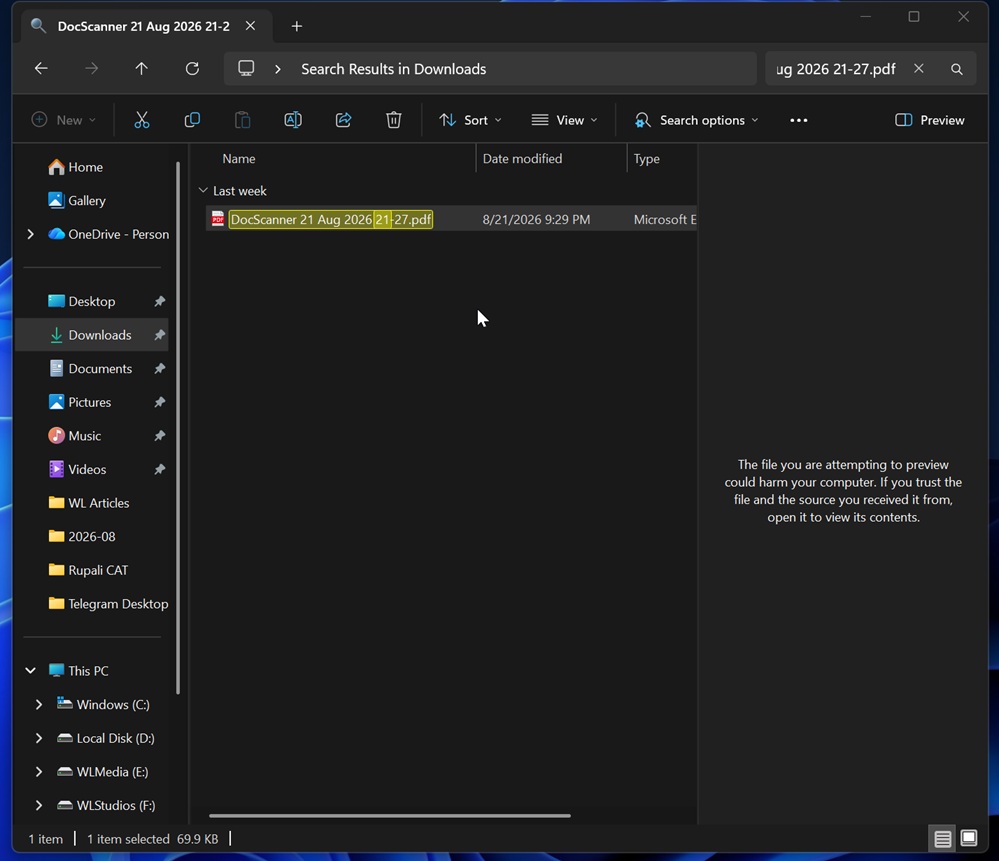
Users could restore preview access by opening the file’s properties and manually unblocking it, but that added unnecessary steps to a feature intended for quick document viewing.
KB5127648 resolves this limitation for most downloaded documents. Files such as PDFs can once again be previewed automatically. HTML files remain excluded from preview support.
File Explorer Remembers Home Section Preferences
The File Explorer Home page now remembers whether sections such as Recent and Favorites are expanded or collapsed. For example, if the Recent section is collapsed, it remains that way after File Explorer is closed or Windows is restarted.
This behavior complements an earlier improvement that preserved filtering, sorting, and view preferences across folders and entry points. If a folder’s layout is changed in File Explorer and that folder is later accessed through another application, such as Chrome, the selected customization is retained.
The Copilot Key Can Be Remapped Without Third-Party Software
Windows 11 now allows users to remap the Copilot key without relying on third-party utilities. The setting is available under Settings > Bluetooth & devices > Keyboard.
The Copilot key can be reassigned to function as either Right Ctrl or the Context Menu key, helping restore familiar shortcuts and accessibility workflows on laptops where Copilot replaced the traditional Right Ctrl key.

If the key is configured as Right Ctrl, combinations such as Right Ctrl + Windows may not work as expected. MS recommends using Left Ctrl for those shortcuts. If a laptop manufacturer already provides its own remapping utility, users should choose either that tool or the Windows setting rather than enabling both.
Applications Can Open Maximized by Default
A new Open apps maximized option is available under Settings > Accessibility > Visual effects. When enabled, applications open in a maximized window instead of returning to their previous window size.
The feature is intended to support screen reader and magnifier users, tablet-mode workflows, smaller displays, and anyone who prefers a consistent maximized workspace. It works with applications including File Explorer.
Disabling the option does not automatically restore earlier window dimensions because applications remember that their most recent state was maximized. The feature may be particularly useful on 13-inch and 14-inch laptops, where applications are often maximized manually.
Bluetooth Navigation and Reliability Improvements
The Bluetooth page in Quick Settings is now easier to navigate with a keyboard, gamepad, or Narrator.
MS acknowledged numerous Bluetooth issues in September, and KB5127648 includes fixes for those problems. Combined with the improvements introduced in July for AirPods and Beats devices, Bluetooth connectivity and usability should be more reliable on Windows 11.
Emoji 17.0 Support
Windows 11 now supports Emoji 17.0, arriving seven months after Emoji 16.0 was introduced in March. New additions include the distorted face, fight cloud, and hairy creature emoji.
To access the updated emoji panel, press Windows + .
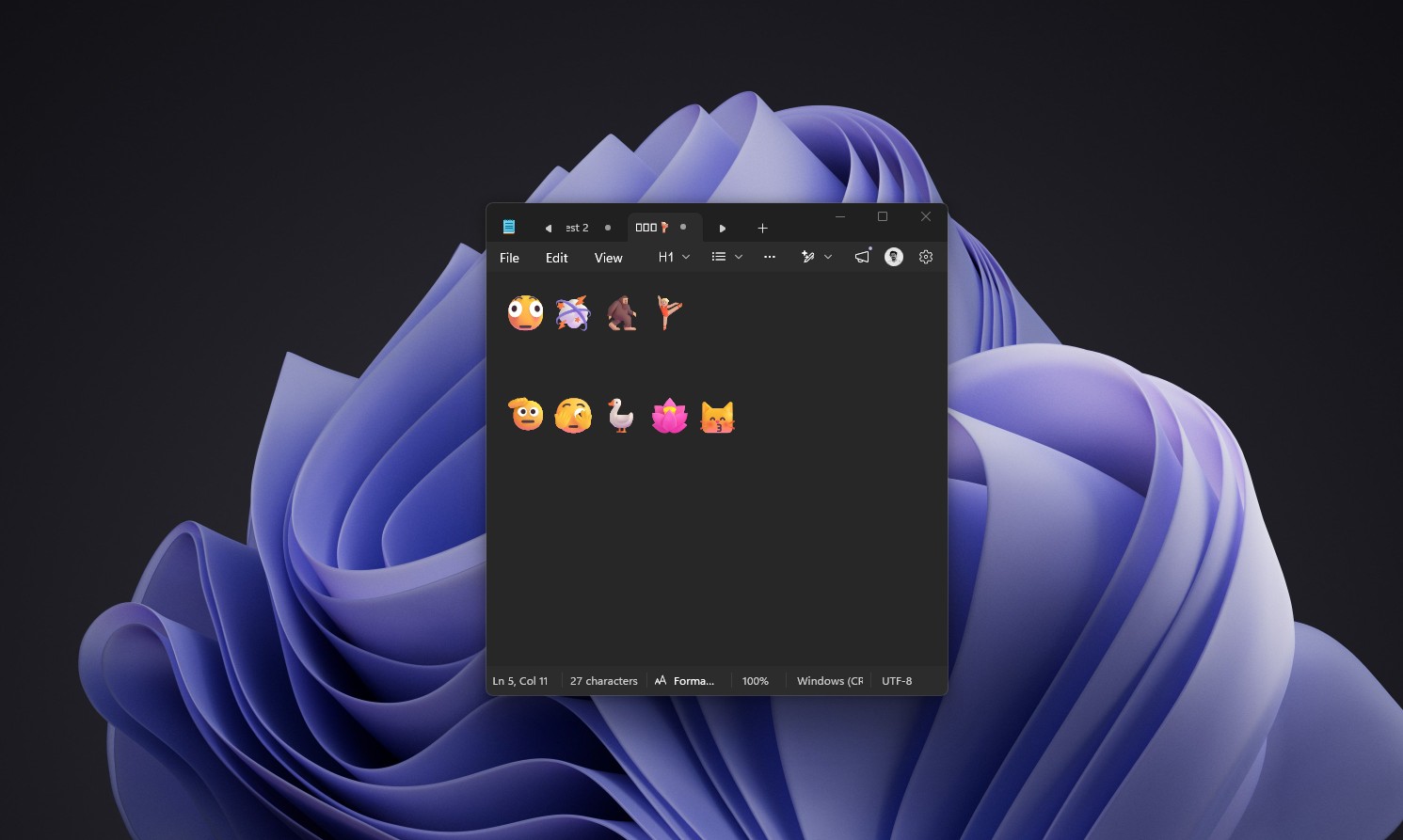
MS has also refined several existing emoji designs to improve consistency with other platforms. Updated designs include the saluting face, face with peeking eye, goose, lotus, and kissing cat.